

Apple Music Replay (often just “Replay”) is Apple Music’s annual year-in-listening recap. In early December 2026 Apple pushed Replay live for subscribers — giving you a personalized mix, top songs, artists, total listening time, discovery highlights and shareable graphics. If you use Apple Music in the U.S., Replay is your fast ticket to a neat, data-driven snapshot of the year. This article explains how to find Replay, what’s new in 2026, how to fix the common “Replay not showing” problems, and smart ways to share your stats.
What is Apple Music Replay
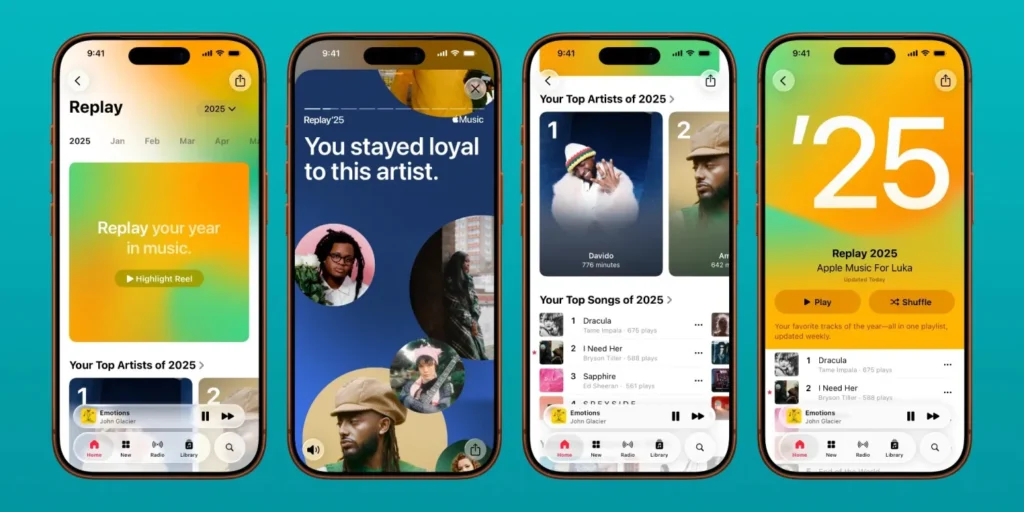
Apple Music Replay is Apple’s answer to year-end recaps like Spotify Wrapped. It compiles your listening history from January 1 through late November/early December and generates:
- Top songs and artists of the year
- Total listening minutes (or hours)
- A Replay playlist with your most-played tracks
- Discovery / loyalty metrics (new artists you found, artists you listened to most consistently)
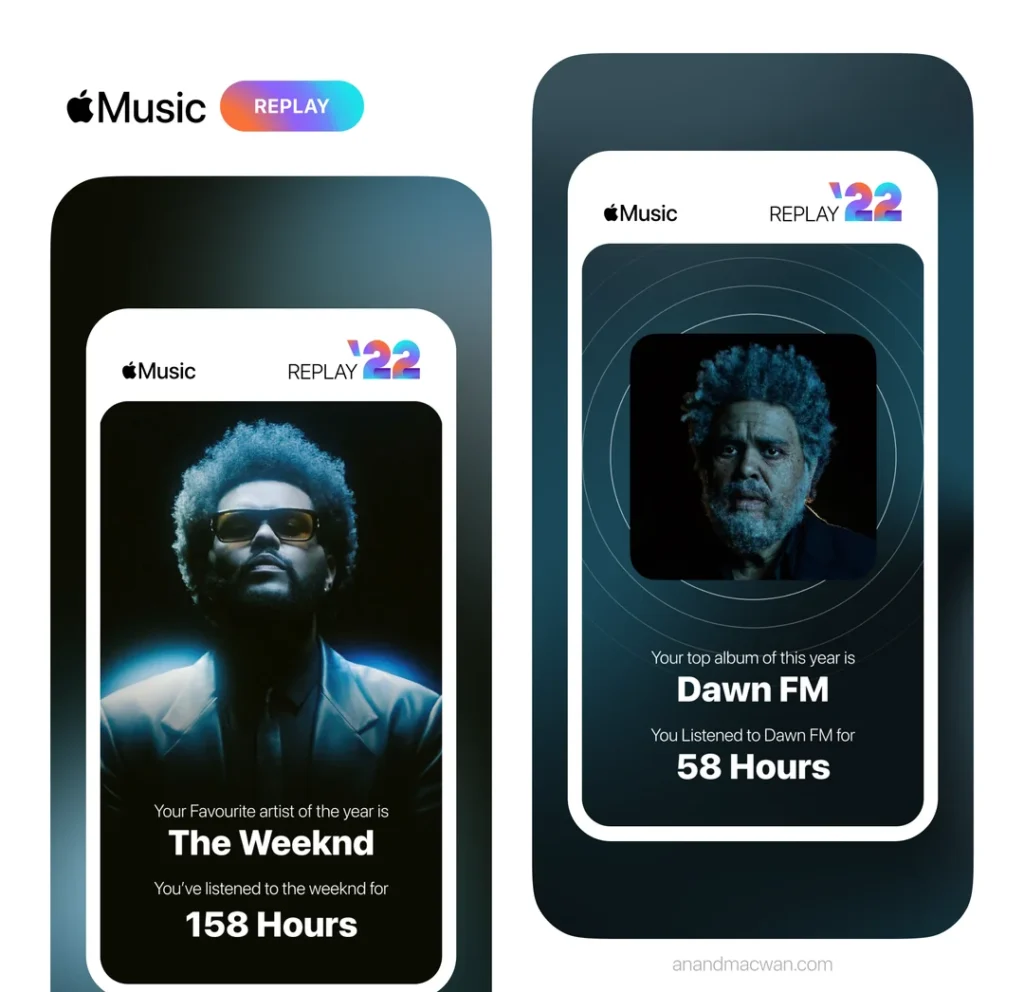
Replay isn’t just a single card — it’s an interactive set of lists and a dedicated Replay mix you can save to your library for repeat listening. The 2026 edition broadened analytics to include discovery highlights and longer, shareable reels.
What’s new in Replay 2026
Apple expanded Replay this year with a few notable additions:
- Discovery insights: A clearer view of artists you found in 2026 versus those you returned to.
- Shareable highlight reels: Built for social — short, attractive assets you can post to Instagram/TikTok.
- Artist analytics (for creators): More detailed metrics for artists on listener growth and most-played tracks.
- Earlier rollout: Apple flipped Replay live in early December, arriving before some competing year-end features this season.
These upgrades make Replay more useful for listeners who want both nostalgia and shareable moments.
More Read

How to access your Apple Music Replay (step-by-step — U.S. users)
- Open the Music app on iPhone or iPad and tap Listen Now. Your Replay banner should appear near the top if your account has enough listening data. Alternatively open replay.music.apple.com in a browser and sign in.
- Check the Replay playlist: A ready-made Replay playlist is usually saved to your Library so you can stream your personal year mix anytime.
- Save & share: Tap the share icon on the Replay card to export images or short reels to social apps.
- If you’re an artist/creator: Visit Apple’s artist dashboards to see extended analytics tied to Replay trends.
Tip: If you frequently switch devices, make sure you’re signed into the same Apple ID across them so Replay aggregates your full listening history.

Why Replay might not show (and how to fix it)
Some users will open the Music app and find Replay either missing, blank, or inaccurate. Here’s what to check — these are the most common causes and fixes:
1) Listening history is turned off
Apple uses your listening history to generate Replay. If Use Listening History is disabled on any device, your stats can be incomplete or Replay may not appear. Turn it on in Settings > Music > Use Listening History on iPhone/iPad, and Music > Settings > General > Use Listening History on Mac. After turning it on, play more tracks and check back — Replay refreshes as it collects data.
2) Not enough listening data or new account
Apple needs a minimum amount of listening time to create a meaningful Replay. If your account was created late in the year or you primarily used other services, Replay may say you “didn’t listen enough.” Solution: keep using Apple Music and check again — you’ll get a Replay once there’s enough data. (Some users see monthly updates as Replay collects stats.)
3) App version / cache problems
Outdated app builds, cached data, or local sync problems can hide Replay. Fixes that typically work: update the Music app, sign out/sign back into your Apple ID, clear app cache (or reinstall the app), and reboot your device. Users on support forums often report that a reinstall resolves blank or wrong stats.
4) Region or library sync issues
If you recently moved regions or used a VPN, Replay may delay or show mismatched data. Ensure your Apple ID region matches your current location and disable VPN while checking Replay. Also confirm you’re using Apple Music (not local files only).
5) Temporary server-side glitches
Like any large rollout, Replay can suffer server hiccups causing delays or inaccurate numbers. If many users report blank or incorrect Replays, it’s often a temporary issue on Apple’s side — wait a few hours and try again. Apple Support and community forums are good places to confirm if it’s a known outage.
Troubleshooting checklist (copy/paste)
- Ensure Use Listening History is enabled on all devices.
- Update Apple Music / iOS to the latest version.
- Sign out of Apple ID → restart device → sign back in.
- Reinstall Music app if stats appear blank or corrupted.
- Disable VPN and confirm Apple ID region.
- Wait 24 hours if you suspect server-side issues.
If none of these work, contact Apple Support with screenshots and your Apple ID details — they can investigate account-level issues.

How Replay compares to other year-end recaps (short)
Replay is less flashy than some competitors but more private and integrated: it builds directly from Apple Music library and listening history (no quizzes or story filters required). Unlike Spotify Wrapped’s heavy social templates, Replay emphasizes a music-first playlist plus simple share images/reels — and this year it added discovery and loyalty insights to better explain how your tastes evolved. For many U.S. users who prize privacy and easy integration into the Apple ecosystem, Replay remains a strong option.
More Read

Best ways to share your Replay (social tips)
- Short vertical reels: Use the built-in share feature to export short clips for Instagram Stories or TikTok. Keep captions punchy: mention your top artist and a surprising discovery.
- Create a “year in music” post: Pair your Replay list with a screenshot of a concert photo or a playlist of songs you discovered live.
- Threaded posts: On X/Threads, post your top 10 tracks with a sentence about why each mattered — it drives engagement and comments.
- Curate a public playlist: Convert your Replay mix to a public playlist to let friends listen to your year in music.
For creators: why Replay matters
Artists and creators should watch Replay because it shapes yearly conversation and can drive streaming traffic. Replay’s artist analytics highlight which tracks repeatedly won listeners’ loyalty and which demographics found an artist through discovery — useful for tour planning and targeted marketing. If you’re a creator, claim your artist page and check Apple’s creator dashboards for Replay-influenced metrics.
Authoritative sources (recommended)
- Apple Music Replay (official) — replay.music.apple.com / music.apple.com/replay.
- Apple Support — “If you don’t see Replay” troubleshooting guide.
- TechCrunch — Replay 2026 launch and feature roundup.
- The Verge — Apple Music Replay 2026 coverage and feature notes.
- MacRumors / Forbes — practical how-to and rollout timing articles.