

Google’s Location History feature can store detailed records of where you’ve been — down to the streets you walked, visited places, and even daily routines — if enabled on your Google Account. Many users now want to know how to turn off Google Location History to safeguard privacy due to recent changes in how Google handles this data and widespread concerns about location tracking.
In 2025, Google has updated how location data storage works, the terminology has changed (Timeline is being retired), and some mapped history may auto-delete or move to on-device storage. Before you switch things off, it’s important to understand what you’re controlling and what other Google settings also link to your location data.
Context
Google’s Location History has been controversial for years because it allows the company to track exact movements when enabled. Though Google claims it’s opt-in, recent investigations show that even with Location History off, some services still log location data through other settings like Web & App Activity.
The terminology and storage practices have also shifted: Google announced that it will retain location records on-device and automatically delete old data — potentially affecting the traditional “timeline” many users rely on.
This makes knowing exactly how to turn off Google Location History — and what that actually stops — more important than ever in 2025.


What Is Google Location History?
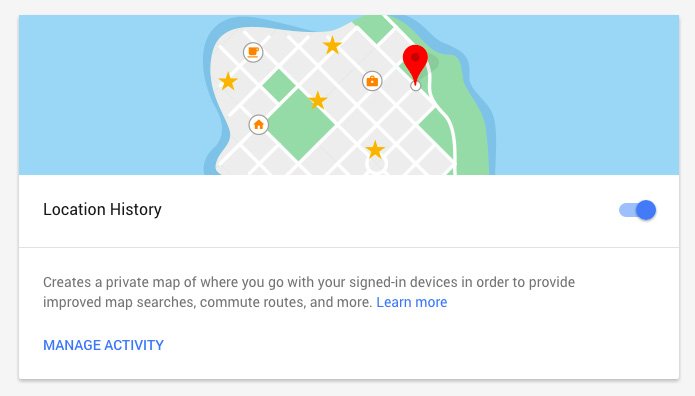
Google Location History is a feature tied to your Google Account that tracks and stores movements from devices where you are signed in — whether you’re walking down the street, driving, or checking into places. This can then be viewed via Google Maps’ Timeline.
It’s used to:
- Provide personalized recommendations and map suggestions
- Help with location-aware search results
- Offer timeline views of where you’ve been
But it also means your location data is stored and usable by Google’s algorithms across services — and possibly accessible in aggregate or by law enforcement tools in rare cases.

Important 2025 Changes Impacting Location History
📌 Google Maps ‘Timeline’ is being phased out or moved to on-device storage, meaning location history might no longer be stored in the cloud long-term unless backed up by the user.
📌 Automatic deletion policies may remove older data after a set period unless you manually export it first.
📌 Even with Location History off, other Google settings may still store location — such as “Web & App Activity”. Google has clarified that turning off Location History does not stop all location data logging.
Understanding these changes helps you act more effectively when you decide how to turn off Google Location History.
Step-by-Step: How to Turn Off Google Location History (2025)
Here’s how to completely disable Google Location History on all your devices:
1. Open Your Google Account Settings
- Go to myaccount.google.com and sign in.
- Click “Data & privacy” from the navigation menu.
2. Find Location History Controls
- Scroll to “History settings”.
- Click “Location History.”
3. Turn Off Location History
- You’ll see a toggle or switch; turn it OFF to stop saving new location data.
- Confirm your choice when prompted.
This disables future tracking of location history in your account.
Additional: Turn Off Web & App Activity (Stops Broader Tracking)
To prevent other Google services from storing location as part of search or app activity:
- Still under “History settings,” click Web & App Activity.
- Toggle this OFF as well.
⚠️ Google warns this can impact personalized services like Search, Maps recommendations, or voice commands.
Delete or Manage Existing Location History
Even after turning it off, past location records can still be stored online.
To Delete All Location History:
- Go to Location History in your account.
- Click “Delete all location history.”
- Confirm deletion.
This removes stored location journeys tied to your account, but does not stop new tracking unless Location History is toggled OFF first.
Mobile Instructions (Android & iPhone)
Mobile steps vary slightly:
On Android:
- Go to Settings > Google > Manage your Google Account.
- Tap Data & privacy > Location History.
- Turn OFF.
Android also offers Location Services toggles, which can further prevent location tracking at the system level.
On iPhone:
- Open Google Maps App → Profile → Your Timeline.
- Or open Settings → Google Account → Data & privacy → Location History and toggle OFF.
Either way, you stop Google from keeping long-term movement records.

What Turning Off Location History Actually Does (and Doesn’t Do)
✔ Stops Timeline from being updated — no new history is recorded.
✔ Removes future location storage if deleted and confirmed.
❌ May not stop all location logging. Google can still record location via:
- Web & App Activity
- Other Google services that use GPS
- App-specific permissions
So turning off Location History alone is not a perfect privacy switch. For maximum privacy:
- Turn off Web & App Activity
- Turn off device location permissions
- Use Incognito or limit app access to location
Expert Tips for Stronger Privacy
- Use Incognito Mode in Google Maps: This prevents searches and navigation from being saved.
- Limit App Permissions: Go into device settings and restrict Google apps from precise location access.
- Regularly Review Data Retention: Set auto-delete to shorter periods (e.g., 3 months).
Conclusion — Taking Control of Your Location Data
Understanding how to turn off Google Location History in 2025 is about more than a single toggle — it’s about knowing where your data lives and how different settings interact. By disabling Location History, optionally turning off Web & App Activity, and cleaning up old history, you take meaningful steps toward stronger privacy without losing the essential utility of Google services.